
Security in Zeropark for Advertisers
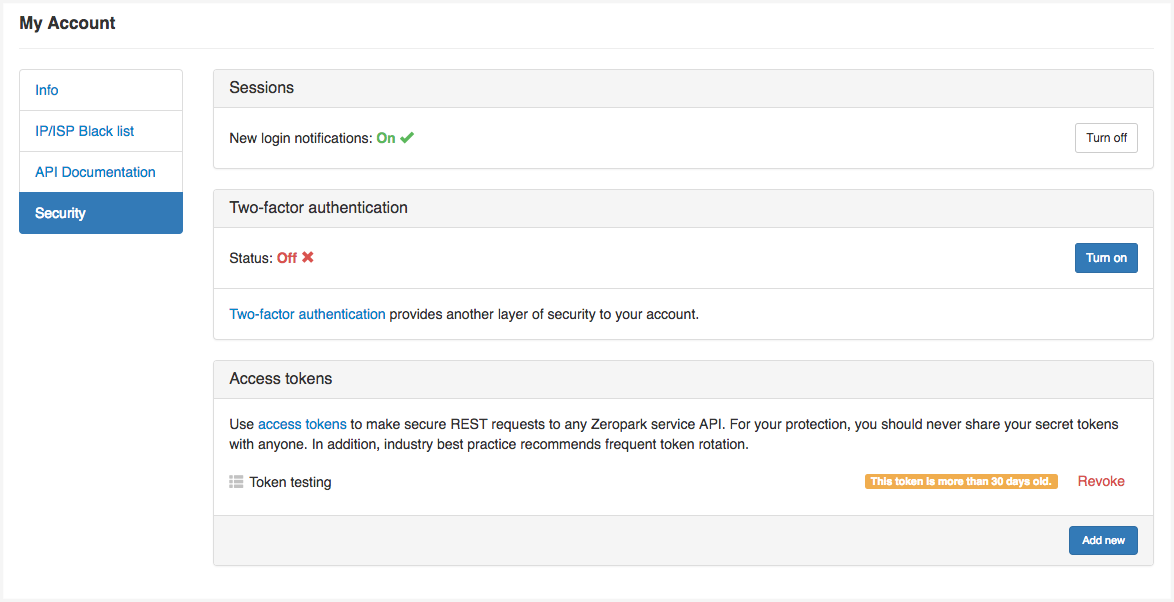
Zeropark has three security features available to protect your account and stop hard-coding sensitive data:
- New login sessions: To help you monitor from which device there are sign-ins to your Zeropark account
- Two-factor authentication: To protect your account from getting hacked
- API access tokens: To stop hard-coding passwords into your scripts
New Sign-in Sessions
Opt-in by default, you are notified by email anytime a new device logs into your Zeropark account. Once notified, you can act on any suspicious sign-ins by suspending your account and resetting the password.
Suspending your account will:
- Send you an email with a new password
- Terminate all active sessions
- Pause all campaigns
- Suspend any financial transactions
- Require a member of Customer Success Team to reactivate your account
Two-Factor Authentication
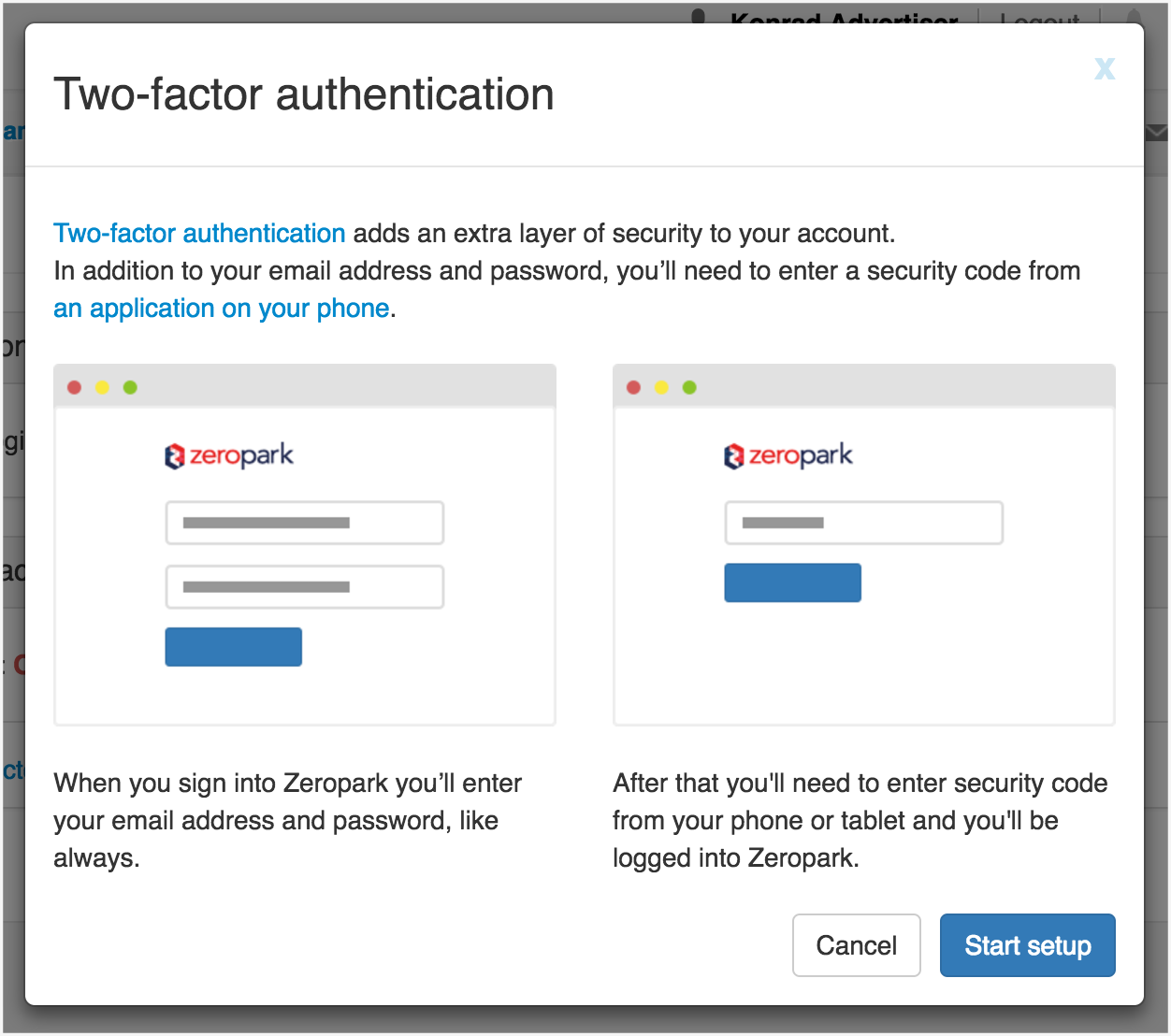
Two-Factor Authentication (2FA) is a method of signing in to the Zeropark platform that requires more than just a password. Using only a password to sign in to any website is vulnerable to security threats because a malicious user only needs one piece of information to gain access to your account. 2FA places an extra layer of security on your account by requiring both your password and a second authentication code while signing in. The only way a user can sign in to your account is if they have your password and the authentication code from your registered mobile device(s). For Zeropark, the additional authentication code will be generated by a Time-based One-Time Password (TOTP) mobile app.
Zeropark Tip: To maximize the security on your Zeropark account, it is highly recommended to utilize 2FA on the Zeropark platform.
Before you start turning on the Two-Factor Authentication for you Zeropark, it is required to download and install a Time-based One-Time Password (TOTP) application. The TOTP application automatically generates authentication codes that expire and refresh after certain periods of time. TOTP applications are more reliable than using SMS authentication, so 2FA on the Zeropark platform will utilize the TOTP authentication only.
Download one of the following mobile applications:
- For Android, iOS, and Blackberry: Google Authenticator
- For Android and iOS: Duo Mobile
- For Windows Phone: Authenticator
After isntalling the TOTP application on your mobile device, set 2FA on the Zeropark platform:
- Go to the My account tab.
- Go to Security in the menu on the left-hand side.
- Scroll down to the Two-factor authentication and click the Turn on button to apply Two-Factor Authentication for your account. The 2FA startup page will show up.
- After reading the information how the authentication process looks like, click the Start setup button.
- Scan the barcode image in the pop-up page using the TOTP application. If you cannot scan the QR code from your computer screen, you can always use a text code option. Click the text code in step 1. in the Two-factor authentication pop-up window and next, type the text code to the mobile application field.
Zeropark Tip: To configure 2FA on multiple devices, you need to follow this step for all devices in the same session; just scan the same QR code by all devices.
If 2FA is already enabled for a device and you want to add another device, you’ll have to reconfigure all devices again. You need to follow the next step only by one of the devices.
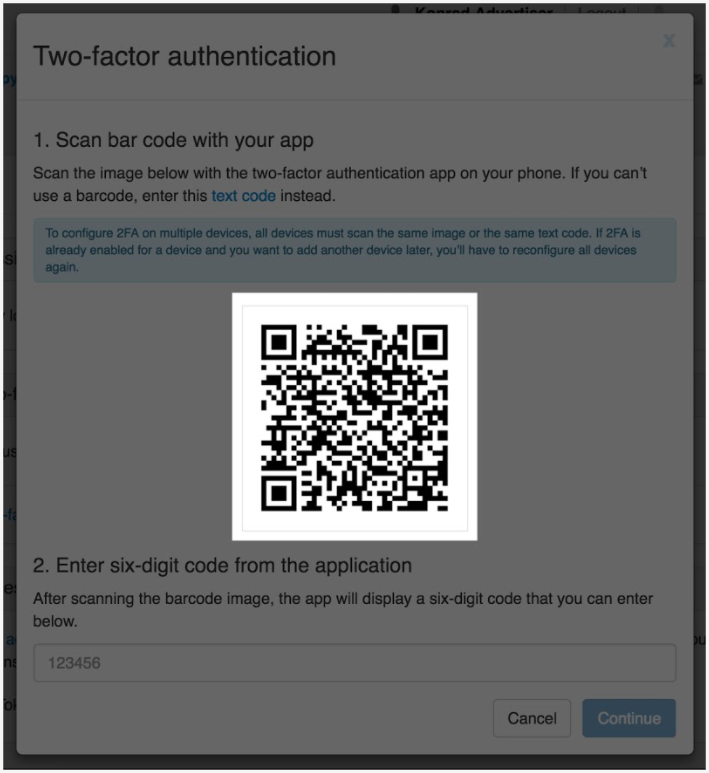
- Input the six-digit code from the application into the field in step 2.
- To complete the verification select Continue and you will see the Two-Factor Authentication status is turned on.
Access Tokens
To use the Zeropark API you are required to obtain API access tokens, which then you need to send in an HTTP header every time you make a request.
To start working with the Zeropark API, follow the steps:
- Sign in to the Zeropark platform and go to My accounts tab.
- Go to the Security tab in the menu on the left-hand side and scroll down to the Access tokens section.
- Create a new API access token.
- Send the API access token in the api-token HTTP header with every request you make to the Zeropark API.